
Description
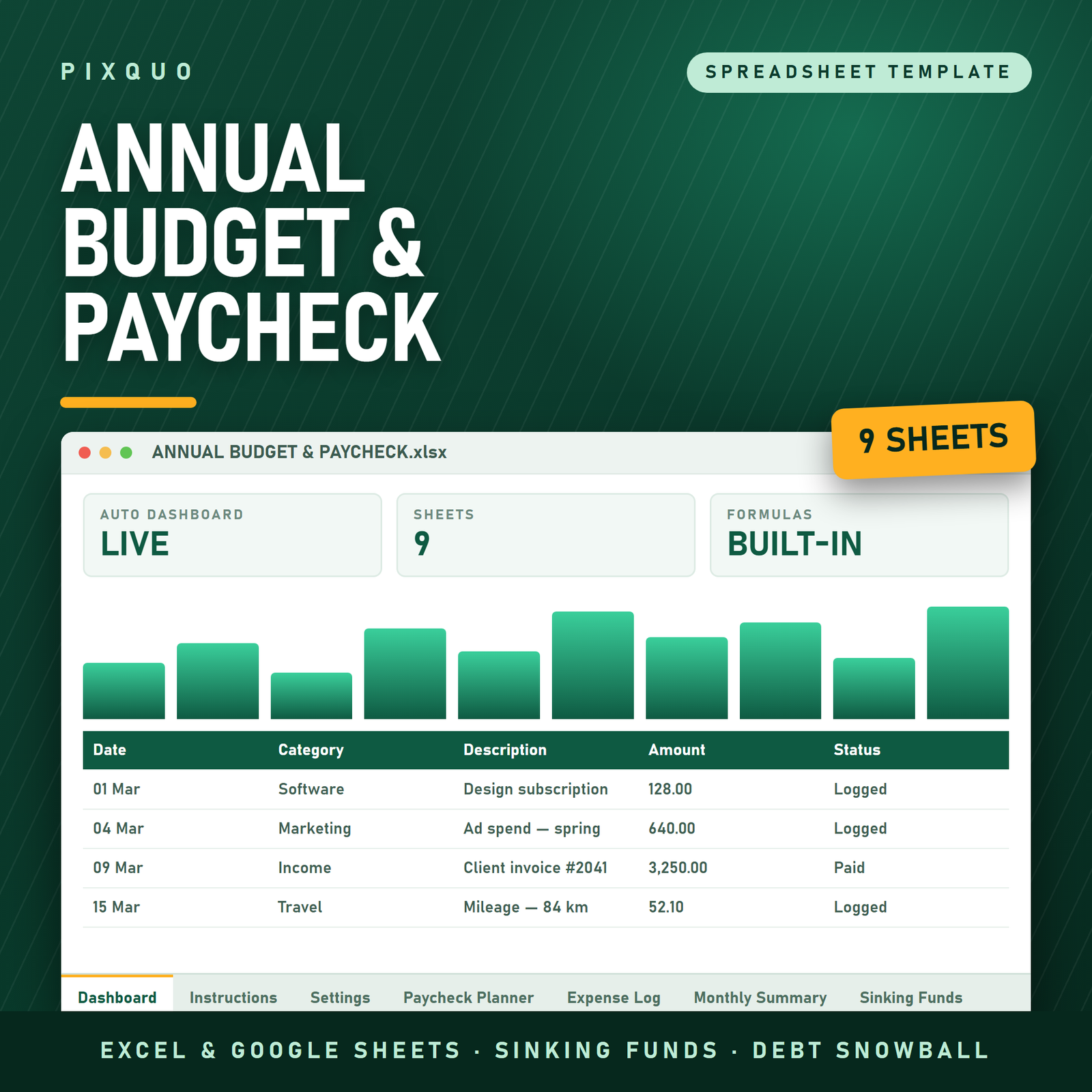
Budget every paycheck like it matters — the Every Paycheck Method in one spreadsheet: 52-paycheck planner with five allocation buckets and a live Left-to-Assign counter, 300-row expense log with category dropdowns, monthly summary with savings rate, sinking funds, debt snowball, savings goals and an 8-KPI dashboard.
Most budgets fail for a boring reason: they’re monthly, but your money isn’t. Rent leaves on the 1st, the car payment on the 15th, groceries every few days — and your income lands weekly, biweekly, or whenever clients pay. A monthly budget forces you to average all of that into one blurry picture, and the blur is where overdrafts live. This planner flips the unit of budgeting from the month to the paycheck: every time money arrives, you give every dollar a job before it can wander off. The spreadsheet does all the math; you make the decisions.
- Works in Excel and Google Sheets (import guide included)
- Set your currency once — $, €, £, kr, zł and more
- US and EU number formats supported
- Frozen headers, dropdowns, cross-sheet formulas — no setup
- Instant download, personal-use license
Normally $19.99 — launch price $9.99.
Why budget by paycheck instead of by month?
The Consumer Financial Protection Bureau’s budgeting guidance comes down to one deceptively simple habit: know what’s coming in, know what’s going out, and decide on the difference before you spend it. Paycheck budgeting is that habit with a schedule attached. Instead of one big monthly planning session that’s out of date by the 9th, you run a five-minute allocation ritual every payday: this check covers rent and groceries, the next one covers the car insurance and the sinking funds. Because each plan only has to survive one or two weeks, it actually survives.
It’s also the method that handles irregular income gracefully. Paid biweekly? You’ll plan 26 checks and spot your two “extra paycheck” months at a glance. Freelance or shift-based? Each deposit gets its own row and its own plan, whatever its size. If the concept is new to you, our deep-dive guide to the budget-by-paycheck method explains the full workflow this spreadsheet automates.
What’s inside: tab-by-tab tour
Tab 1 — 52-Paycheck Planner (the engine)
One row per paycheck, up to 52 per year — enough for weekly pay, and plenty for biweekly, semi-monthly, or irregular deposits. For each check you enter the date and amount, then allocate it across five buckets: Bills, Everyday Spending, Savings, Debt, and Sinking Funds. The star of the tab is the live Left-to-Assign counter: it starts at the full paycheck amount and counts down toward zero as you allocate. Green zero means every dollar has a job. A positive number means money is still unassigned (and will vanish on its own if you let it); a negative number means you’ve planned more than you earned — caught on the spreadsheet, not at the ATM. Totals per bucket roll up automatically by month and year so you can see, for example, exactly what percentage of annual income went to debt.
Tab 2 — 300-Row Expense Log
The reality-check tab. Every purchase gets a row: date, description, amount, and a category chosen from a dropdown — no typing “groceries,” “Groceries,” and “food” and wondering why your totals look wrong. Dropdowns keep the data clean, and clean data is what powers the monthly summary and dashboard. Three hundred rows comfortably covers a year of tracking for most households (and you can extend it — the formulas are visible, not locked). Frozen headers mean you always know which column you’re in, even at row 250.
Tab 3 — Monthly Summary with savings rate
Twelve months across, categories down: this tab pulls from your paycheck planner and expense log to show planned vs. actual for every month, with variance highlighted. It also computes your monthly savings rate — the single number that best predicts long-term financial progress — so you can watch it climb from month to month. If you’ve ever wanted the clarity of the 50/30/20 breakdown, the summary makes it easy to compare your real ratios against that benchmark; see our 50/30/20 rule guide for how to read it.
Tab 4 — Sinking Funds
Christmas is not an emergency. Neither is car registration, the vet visit, or annual insurance — they’re irregular but predictable, and sinking funds are how you make them boring. Set up a fund per category with a target amount and target date, and the tab calculates the per-paycheck contribution needed to arrive on time, then tracks your running balance as you contribute. It’s the classic sinking fund concept from corporate finance, shrunk down to household size. New to the idea? Start with our plain-English explainer, sinking funds explained.
Tab 5 — Debt Snowball
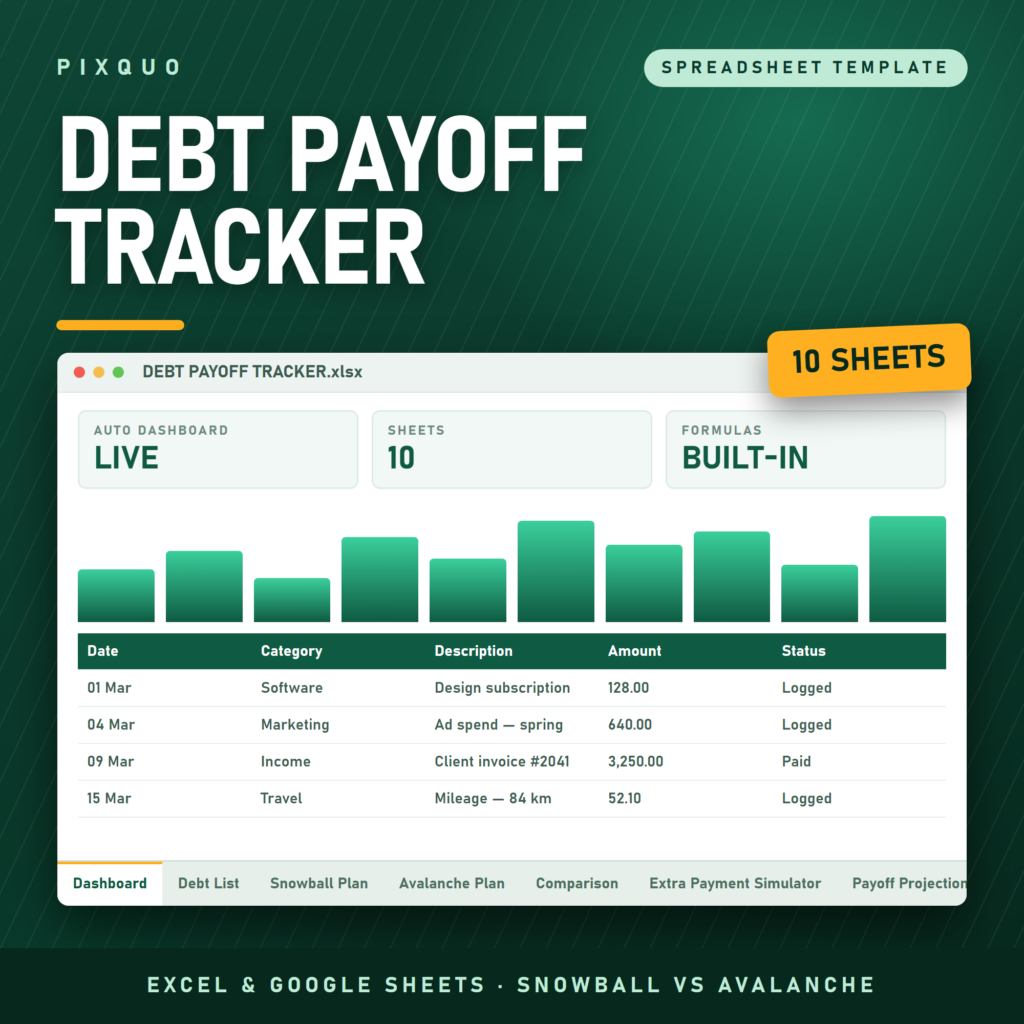
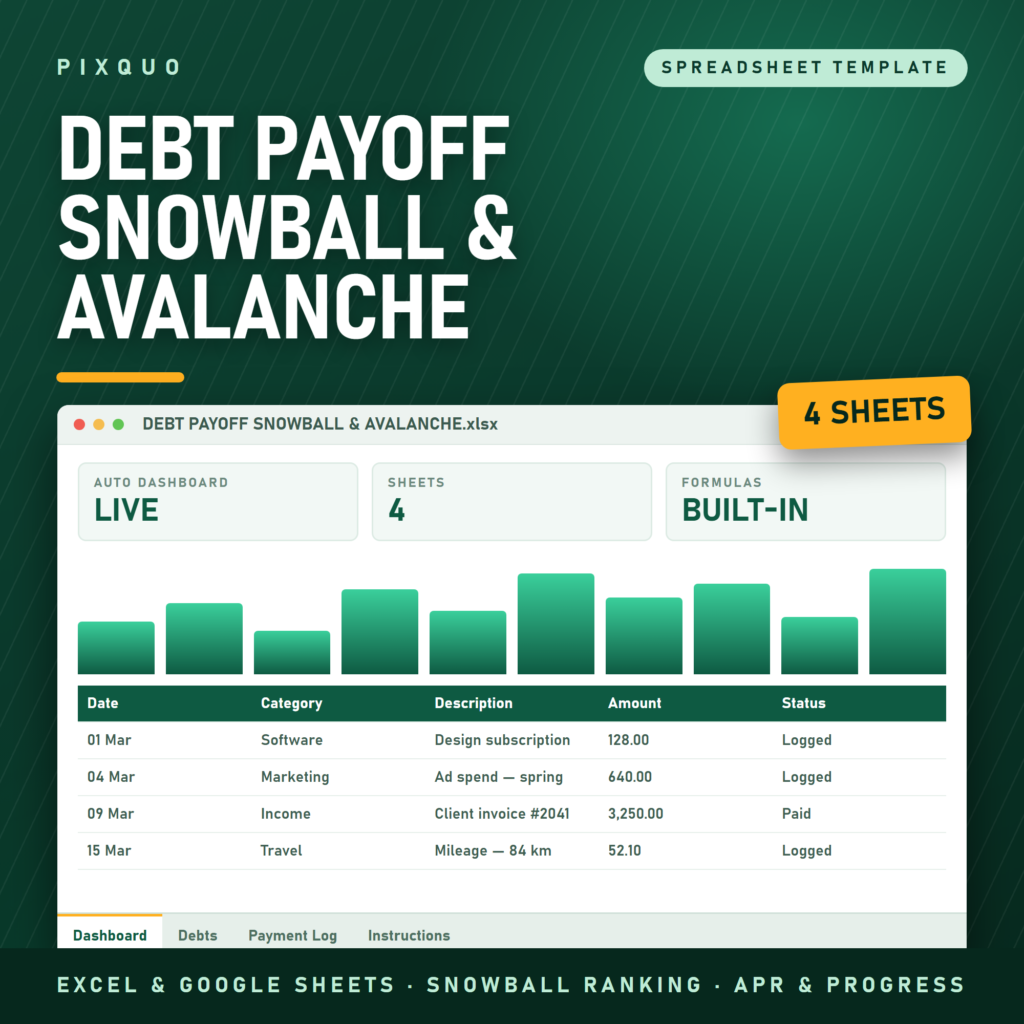
List every debt with its balance, minimum payment, and interest rate. The tab orders them smallest-balance-first — the debt snowball approach, which trades a little interest efficiency for a lot of motivational wins — and shows how each payoff “snowballs” its payment into the next debt. Enter your extra monthly amount and watch the projected debt-free timeline update. Prefer highest-interest-first (avalanche)? Re-sort and the math still works. Our debt snowball worksheet guide walks through a full example if you want to see the method in action first.
Tab 6 — Savings Goals
Emergency fund, house deposit, travel, new laptop — each goal gets a target, a deadline, a progress bar, and a calculated “save this much per paycheck” figure that plugs straight into your allocation ritual. Goals stop being wishes the moment they have a per-paycheck price tag.
Tab 7 — 8-KPI Dashboard
The one-glance tab that answers “how are we actually doing?” Eight key numbers update automatically from the other tabs: total income year-to-date, total spending, savings rate, total saved, total debt remaining, debt paid off, sinking fund balances, and left-to-assign across recent checks. No formulas to touch — it simply reads the data you’ve already entered. This is the tab worth checking every Sunday.
Who this spreadsheet is for
- Anyone paid weekly or biweekly who’s tired of forcing a monthly budget onto a non-monthly life.
- Irregular earners — freelancers, shift workers, commission-based roles — who need each deposit planned on its own terms.
- Couples who want one shared, always-current file in Google Sheets instead of two mental ledgers and a monthly argument.
- Debt-payoff mode households who want the snowball, the sinking funds, and the budget in one file instead of three apps.
- Budget-app refugees who miss owning their data, seeing the formulas, and paying no subscription. This file is yours forever.
It’s not for you if you want fully automatic bank syncing — this is deliberate, manual-entry budgeting. That’s a feature: the two minutes it takes to log purchases is exactly the awareness most budgets are missing. Automated apps are excellent at recording what happened; they’re much weaker at changing what happens next, because money you never touch is money you never think about. Typing “47.80 — groceries” takes ten seconds, and that ten seconds is where spending awareness actually forms. Most users find that after a month of manual logging, they can estimate their weekly spending within a few dollars — a skill no auto-syncing app ever taught anyone.
How to use it: your first payday in 10 minutes
- Open in your app of choice. Use the .xlsx directly in Excel, or follow the included one-page import guide for Google Sheets (about 60 seconds).
- Set currency and format once. Pick $, €, £, kr, zł or another symbol and choose US or EU number formatting — every tab follows.
- List your bills and categories. Adjust the category dropdown list to match your real life. Delete what you don’t use.
- Enter your next paycheck. Allocate it across the five buckets until Left-to-Assign hits zero. That’s the whole ritual.
- Log spending as you go. A few rows a day, or a five-minute batch entry twice a week — whichever you’ll actually keep doing.
- Check the dashboard weekly. Watch the savings rate and debt totals move. Adjust next paycheck’s plan accordingly.
Repeat every payday. By the third or fourth check the ritual takes five minutes and starts feeling less like homework and more like being in control.
A month in the life with this planner
Here’s how the system feels in practice. It’s the 1st, and your paycheck lands. You open the file, add a row, and type the amount. Rent and the electric bill go into the Bills bucket; a realistic grocery-and-fuel figure goes into Everyday Spending; your emergency fund gets its planned slice under Savings; the credit card gets its snowball payment under Debt; and the December-gifts and car-insurance sinking funds each get their small automatic contribution. The Left-to-Assign counter ticks down to zero. Total time: about six minutes.
Over the next two weeks you log purchases in the expense log — a coffee here, a supermarket run there, each one a ten-second row with a dropdown category. Mid-month, the second paycheck arrives and gets its own plan: this one carries the car payment and the phone bill, tops up Everyday Spending, and pushes a bit extra at the snowball because the first check ran under budget on groceries.
On Sunday evenings you open the dashboard for two minutes. Savings rate: visible. Debt remaining: smaller than last week. Sinking funds: quietly growing toward bills that used to ambush you. At month-end, the monthly summary has already assembled itself from your logged data — planned vs. actual per category, variance highlighted, no receipts shoebox, no reconstruction archaeology. You adjust next month’s numbers where reality disagreed with the plan, and that’s the entire administrative burden of your financial life: a few minutes per payday, a couple of check-ins per week.
Five budget-killers this spreadsheet is designed to prevent
- Unassigned money. Income that isn’t given a job disappears into small purchases nobody remembers. The Left-to-Assign counter makes unassigned dollars impossible to ignore.
- The “annual bill ambush.” Insurance, subscriptions, holidays — predictable expenses that feel like emergencies because nothing was set aside. The sinking funds tab converts them into small per-paycheck line items.
- Messy category data. Free-typed categories quietly break every report. Dropdowns keep entries consistent, so the summary and dashboard always tell the truth.
- Debt payments with no visible progress. Minimum payments feel endless when you can’t see the finish line. The snowball tab shows the payoff order, the rolling payment, and a projected debt-free date that moves closer every month.
- Budgets that die in week two. Monthly plans fail once and get abandoned. Paycheck-sized plans reset every payday, so one bad stretch never kills the system — the next check is always a fresh start.
Compatibility, currency and formats
The file is built to behave identically in Microsoft Excel (2016 or newer, including Excel 365) and Google Sheets — every formula used is supported in both, and the included import guide covers the one-time Google Sheets setup. It also opens in LibreOffice Calc for the spreadsheet purists. Currency is a single setting: choose your symbol once and it flows through every tab, so the planner works as well in Warsaw or Stockholm as in Chicago. Both US-style (1,234.56) and EU-style (1.234,56) number formats are supported. Printable-planner person instead of a spreadsheet person? Browse our regional printables and planners by country hub, or see our roundup of free printable budget templates to try the paper route first.
| Feature | This spreadsheet | Typical budget app | Paper budget binder |
|---|---|---|---|
| Cost | One-time purchase | Monthly subscription | One-time + printing |
| Your data | Yours, in your file | On their servers | Yours, on paper |
| Paycheck-level planning | Built in (52 checks) | Usually monthly only | Manual math |
| Auto-calculations | All formulas included | Yes | None — you’re the calculator |
| Debt snowball + sinking funds | Included tabs | Often a paid add-on | Separate worksheets |
| Customization | Full — formulas visible | Limited to app options | Full but laborious |
Pairs well with
- Subscription & Bill Tracker — audit your recurring charges first, and your Bills bucket gets smaller before you even start budgeting.
- Personal Net Worth & Financial Goals Tracker — the budget manages the month; this one shows the years. Watching net worth climb is the payoff for every zeroed-out paycheck.
- Budget Planner Printable — prefer pen and paper for the daily habit? Use the printable for day-to-day and this spreadsheet as your source of truth.
Learn the method before you buy
Want to understand the system this spreadsheet automates? Start with the budget-by-paycheck method guide, then read sinking funds explained and the debt snowball worksheet guide — the three pillars this planner is built on.
One more piece of honest advice before you buy: no spreadsheet creates discipline out of thin air, and we won’t pretend this one does. What a well-designed planner does is lower the cost of the discipline you already want to have. When allocating a paycheck takes five minutes instead of an evening, you’ll actually do it. When the dashboard answers “how are we doing?” in one glance instead of an hour of statement archaeology, you’ll actually look. When the debt payoff date is a visible cell instead of a vague hope, you’ll actually protect the payment that moves it. Small frictions removed, every payday, compound into the financial change people credit to willpower — that’s the honest promise here, and it’s a substantial one.
Frequently asked questions
Does it work in Google Sheets or only Excel?
Both, fully. Every formula was chosen to be compatible with Excel and Google Sheets, and the download includes a short import guide for Sheets (upload, open, convert — about a minute). Couples often keep it in Google Sheets so both partners edit the same live file from their phones.
I’m paid biweekly and get two “extra” checks a year. Does the planner handle that?
Yes — this is exactly where paycheck budgeting shines. With 52 rows available, your 26 biweekly checks each get their own plan, and the two months with a third check stand out instantly. Most users send those extra checks straight to the debt snowball or a sinking fund, and the planner shows the impact immediately.
Can I use my own currency and categories?
Yes. Currency is a one-time setting ($, €, £, kr, zł and more) and both US and EU number formats are supported. The category dropdown list is fully editable — rename, add, or delete categories and the dropdowns, summary, and dashboard all follow along.
Do I need to know spreadsheet formulas?
No. Everything is pre-built: cross-sheet formulas, dropdowns, frozen headers, conditional formatting. You only ever type dates, amounts, and names. The formulas are visible rather than locked, so if you do enjoy tinkering, you can extend anything — but you never have to.
Is this the same as the 50/30/20 budget?
It’s compatible with it. The 50/30/20 rule is a target for how income splits between needs, wants, and savings; the paycheck method is the mechanism that gets you there. The monthly summary shows your real ratios, so you can steer toward 50/30/20 — or whatever split fits your season of life. Our 50/30/20 guide covers the comparison in detail.
What do I receive after purchase?
An instant digital download: the full spreadsheet file plus the Google Sheets import guide. Nothing ships. Download links appear right after checkout and in your email, and you can re-download any time from your account.
Instant download & license
This is a digital product with instant delivery — no shipping, no waiting. Your purchase includes a personal-use license: use it on your own devices and share it within your household, but please don’t resell, redistribute, or share the files publicly. Because delivery is instant and digital, all sales are final; if anything doesn’t work as described, contact us and we’ll sort it out.
Explore More Digital Tools
- Browse the full shop — planners, trackers, prompt packs and printables
- Free printables library
- Budgeting & saving guide · Planners & productivity guide
- Paper sizes & currency by country
Every Pixquo product is an instant download — no shipping, no waiting.
Reviews
There are no reviews yet.