
Description
See the exact month you become debt free — then watch it move closer
Debt is not really a maths problem. It is a visibility problem. When you cannot see the finish line, every payment feels like it disappears into a hole, and the temptation is to pay the minimums and look away. The moment you can see a date — an actual month and year when the last account hits zero — the whole thing changes shape.
This spreadsheet gives you that date. Enter your debts once and it builds two complete payoff plans side by side: snowball (smallest balance first, for momentum) and avalanche (highest interest rate first, for maths). It tells you how many months each one takes, what date you finish, how much interest each one costs you, and precisely how much you save compared with paying minimums forever.
Then it lets you play. Change your extra payment from 50 to 150 and watch every payoff date move. That is the feature people come back and say actually got them out.
What is inside the file
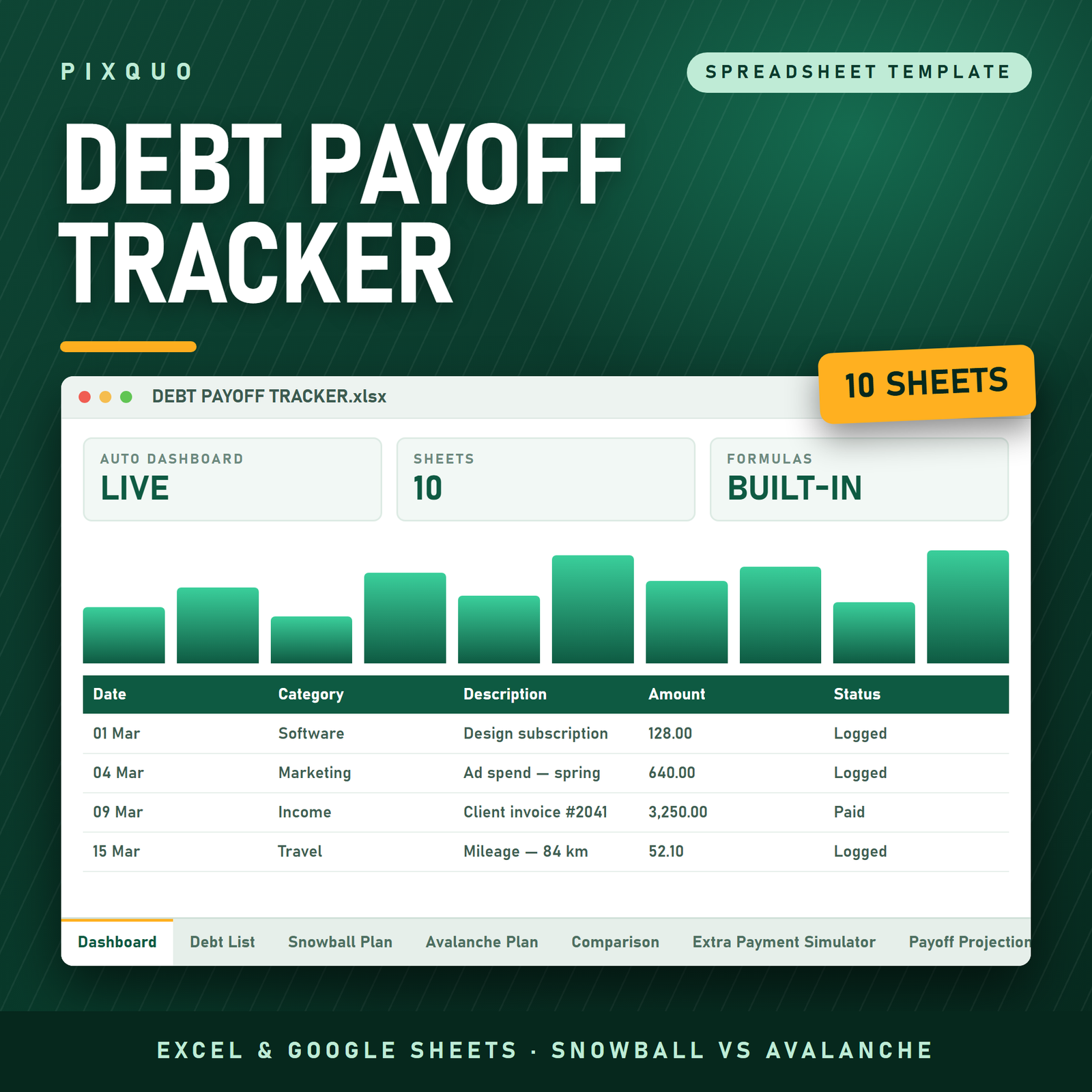
- Debt Freedom Dashboard — total debt remaining, starting debt, how much you have already cleared, progress as a percentage, debts still open, your next snowball target by name, minimum payments per month, total payment per month, months to debt free, your debt-free date, total interest on your chosen plan, and interest saved versus minimums. Below that, a per-debt progress strip showing remaining, paid and percentage cleared for each account.
- Debt List — the only tab you really maintain. Creditor, type (credit card, store card, personal loan, car, student, medical, overdraft, BNPL, tax debt, mortgage and more), starting balance, current balance, APR, minimum payment and due day. The Snowball Order and Avalanche Order columns rank themselves — you never sort this list by hand, and adding a debt re-orders both plans instantly.
- Snowball Plan — one row per debt in smallest-balance-first order, showing balance, APR, minimum payment, the rolled-over minimums building up from every account you have already cleared, your extra payment, the total payment applied, months to clear that debt, cumulative months, the payoff date and the interest paid. Whole-plan totals at the bottom.
- Avalanche Plan — the identical table in highest-APR-first order, so you can compare like with like.
- Comparison — snowball versus avalanche versus paying minimums only, across months to debt free, debt-free date, months saved, total interest, interest saved and total repaid. It even writes you a one-line verdict telling you how much more the avalanche saves on your specific numbers — and reminds you that the plan you finish beats the plan that is theoretically optimal. The minimums-only working is shown underneath, one row per debt, so nothing is a black box.
- Extra Payment Simulator — eight scenarios from zero to 500 extra per month, each showing total payment, months, debt-free date, total interest, months saved and interest saved. This is the motivation engine.
- Payoff Projection — ten years of month-by-month opening balance, interest, payment, principal and closing balance on your current total payment. Watch the balance curve bend.
- Payment Log — a running record of what you actually paid, how much of it was extra, the interest charged and the balance afterwards. 300 rows with totals and filters.
- Settings — currency symbol, plan start date, extra payment per month, and whether the dashboard reports on snowball or avalanche. Four cells.
- Instructions — opening it in Excel or Google Sheets, what each tab does, how to clear the sample data safely, and the licence in plain English.
Who this is for
Anyone carrying more than one balance: credit cards, store cards, a car loan, a student loan, an overdraft, buy-now-pay-later, a personal loan, money owed to family. If you have ever wondered whether to attack the small annoying balance first or the 27% one, this answers it with your own numbers instead of a stranger’s opinion on the internet.
It works internationally. Currency is one cell. Dates are written YYYY-MM-DD so nobody misreads them. There are no country-specific assumptions, no US-only loan types, and APR is entered as a plain percentage, so it works the same on a UK credit card, a South African store card or an American auto loan.
How to use it
- Open Settings: currency, plan start date, the extra amount you can genuinely find each month, and your chosen strategy.
- Clear the five sample debts and enter your own — creditor, type, starting balance, current balance, APR and minimum payment. The two order columns fill themselves.
- Read the Comparison tab. Decide whether you are running snowball or avalanche, and set it on Settings.
- Log payments as you make them, and update the Current Balance column once a month. That single monthly update refreshes every date in the workbook.
- When motivation dips, open the Extra Payment Simulator and see what one more 50 a month takes off the finish date.
How the maths works — honestly
Payoff months come from the standard NPER formula at each debt’s own APR, with payments applied in your chosen order: while you attack one debt you pay its minimum, plus the minimums of every account already cleared above it, plus your extra. That is the real snowball mechanic, not a rough guess. Balances are taken as of your plan start date, so interest that accrues on a debt while it waits its turn is not layered on top — treat the months and interest as a close estimate rather than a bank statement. The Payoff Projection tab models interest month by month for the aggregate balance if you want to see it accrue. Every assumption is written on the sheet itself, not buried.
Formats and compatibility
You receive a single .xlsx workbook in a zip, plus a plain-text quick-start and licence file. It opens natively in Microsoft Excel (Windows, Mac, Microsoft 365, Excel 2016 and later) and uploads straight into Google Sheets for free — formulas, dropdowns, frozen headers and filters all carry across. It also opens in Apple Numbers and LibreOffice Calc. No install, no subscription, no account.
Pairs well with
- Annual Budget & Paycheck Planner Spreadsheet — find the extra payment in the first place.
- Subscription & Bill Tracker — the fastest place most people free up another 50 a month.
- Personal Net Worth & Financial Goals Tracker — watch the number go positive as the debt goes down.
Reading first? Our guides on budgeting and saving money and habits, mindset and motivation cover the part of this that is not arithmetic.
Questions people ask before buying
Snowball or avalanche — which should I actually pick?
The Comparison tab answers it for your numbers. Avalanche almost always costs less interest; snowball almost always gets finished, because clearing a whole account early is a real psychological win. If the interest gap between them is small — and for most people with a few similar-rate cards it is — take the snowball. The file shows you the gap so you can decide with evidence.
Do I need Excel?
No. Google Sheets opens it for free and everything works — the plans, the dropdowns, the simulator, all of it. Instructions are on the Instructions tab.
Does it work with my currency and my country’s loans?
Yes. Currency is set in one cell and there are no country-specific rules baked in. You enter each debt’s APR and minimum payment exactly as your statement shows them.
What if a debt shows a blank number of months?
That means the minimum payment on that account does not even cover its monthly interest, so the balance would never fall. The sheet tells you this in plain English rather than showing a silent error. Raise the payment on that debt, or make it your first target.
How often do I need to update it?
Once a month. Update the Current Balance column on the Debt List and log the month’s payments. Everything else re-calculates, including your debt-free date.
Is this financial advice?
No. It is a calculator and a tracker. It shows you what your own numbers imply under clearly stated assumptions. It does not know about your circumstances, penalty clauses, promotional rates or whether consolidation would suit you — speak to a qualified adviser or a free debt charity for that.
Instant download and licence
Digital product. Your download is available immediately after checkout, with no expiry and no download limit. Nothing is shipped.
Licensed for personal use — yours, on as many of your own devices as you like. You may not resell, redistribute, share, sublicense or repackage the file or its contents. Because the file is delivered instantly and cannot be returned, all sales are final.
Microsoft Excel and Google Sheets are trademarks of their respective owners. This product is independent and is not affiliated with, endorsed by or sponsored by Microsoft or Google; those names are used only to describe the software the file opens in.
Explore More Digital Tools
- Browse the full shop — planners, trackers, prompt packs and printables
- Free printables library
- Budgeting & saving guide · Planners & productivity guide
- Paper sizes & currency by country
Every Pixquo product is an instant download — no shipping, no waiting.



Reviews
There are no reviews yet.